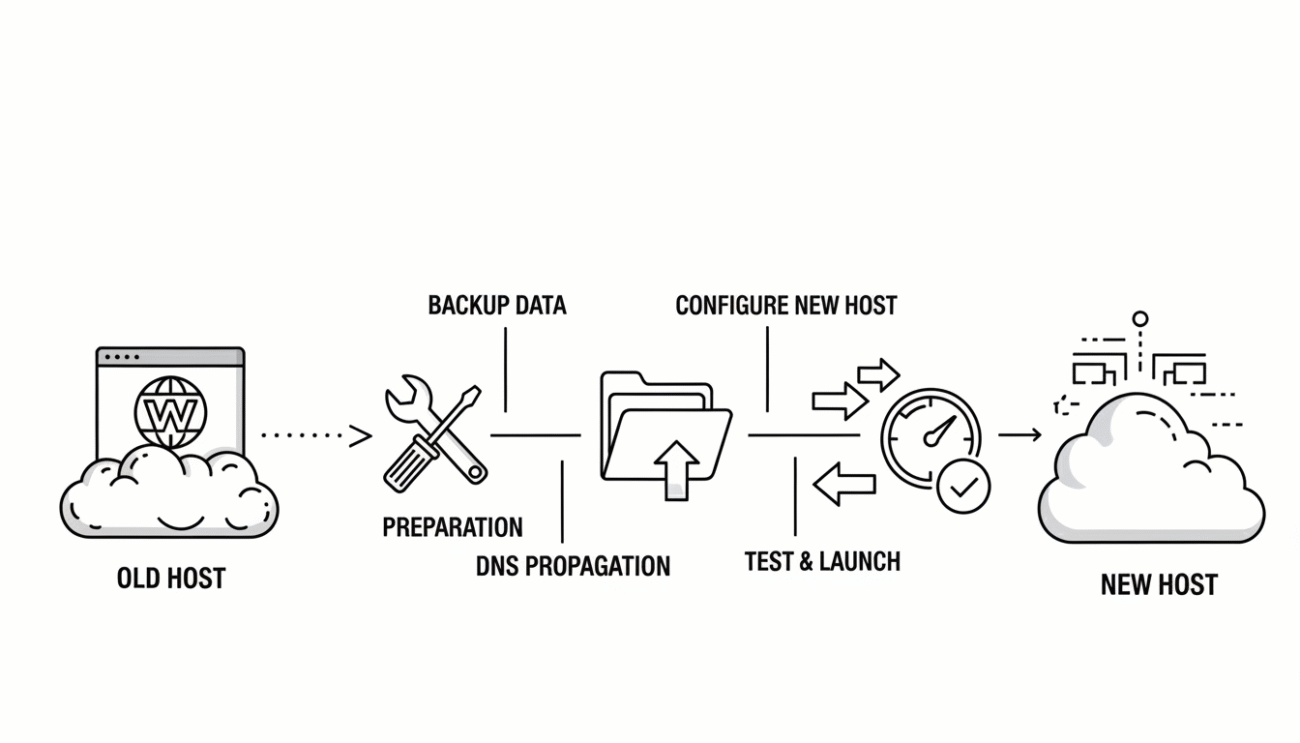
Switching to a new web hosting provider can feel intimidating — especially if your website is already live and attracting visitors. The biggest fear most website owners have during migration is downtime — the dreaded period when your website becomes inaccessible to users.
The good news? With proper planning, you can migrate your website seamlessly, without losing traffic, SEO rankings, or functionality.
In this detailed guide, you’ll learn exactly how to transfer your website to a new host safely, efficiently, and without any service interruption.
1. Why You Might Need to Change Hosting Providers
There are many reasons website owners decide to move to a new host. Sometimes it’s about performance, other times about pricing, support, or security.
Common Reasons for Switching Hosts
- Slow website performance: Your current server may be overloaded or outdated.
- Frequent downtime: Unreliable hosts can hurt your SEO and customer trust.
- Poor customer support: Unresponsive or inexperienced support can make small issues painful to fix.
- Hidden renewal fees: Many hosts lure users with low first-year pricing, then sharply increase rates.
- Lack of scalability: As your site grows, you may need more power, storage, or flexibility.
- Better technology elsewhere: NVMe drives, LiteSpeed servers, or managed WordPress options may not be available on your current host.
Whatever your reason, the goal is the same: migrate your website smoothly to a host that offers better reliability, speed, and long-term value — all without downtime.
2. Understand the Core Risks of Website Migration
Before you begin, it’s important to understand what can go wrong during a migration — so you can avoid it.
Potential Migration Risks
- Temporary site outage due to DNS misconfiguration
- Data loss if files or databases aren’t backed up correctly
- Broken links or missing images caused by path changes
- Email disruption during domain transfer
- SEO ranking drops from incorrect redirects or downtime
The good news is every one of these problems can be prevented with careful preparation and proper sequencing of steps.
3. Pre-Migration Preparation
A smooth migration always begins with a solid plan. The more you prepare in advance, the less chance you’ll face surprises later.
Step 1: Audit Your Current Website
Start by reviewing your website’s structure, size, and functionality.
- Identify the type of content (static HTML, CMS-based, eCommerce).
- Note down installed plugins, themes, and custom scripts.
- Check database size and email accounts.
Knowing exactly what your site contains helps you ensure everything moves correctly.
Step 2: Backup Everything
Never start migration without a full backup. Create a complete copy of:
- Website files (via cPanel, FTP, or file manager)
- Databases (MySQL or PostgreSQL dumps)
- Email accounts and configurations
- SSL certificates, if applicable
Store these backups safely on your local drive or cloud storage. If anything goes wrong, you’ll have a reliable restore point.
Step 3: Choose a New Hosting Provider
Pick your new host based on your needs — performance, uptime, scalability, and support.
Ensure they offer:
- Free migration support (many do)
- SSD or NVMe storage for speed
- Free SSL and daily backups
- 24/7 customer service for emergency help
If possible, choose a host with a data center close to your audience for faster response times.
4. Set Up Your New Hosting Account
Once you’ve selected your new provider, the next step is setting up the hosting environment where your website will live.
What to Do
- Create your new account and access the control panel (such as cPanel or Plesk).
- Set up your domain’s initial configuration but do not change DNS records yet.
- Create an empty database and a new user (for CMS-based websites like WordPress).
- Install SSL if included, or prepare to migrate your certificate later.
At this stage, your new hosting account is ready to receive the transferred files and data.
5. Download and Transfer Website Files
Your website’s files are the core of your migration. Copy them from the old server and upload them to the new one.
For Static Websites (HTML/CSS/JS)
- Use an FTP client like FileZilla.
- Connect to your old host and download the entire public_html or www directory.
- Connect to your new host and upload these files to the same directory path.
For Dynamic Websites (WordPress, Joomla, etc.)
- Download both website files and the associated database.
- Keep folder structures and file permissions identical to avoid errors.
This step can take anywhere from a few minutes to an hour, depending on your website’s size and your connection speed.
6. Export and Import Your Database
If your site uses a database (like WordPress, Magento, or Drupal), you must transfer it carefully to maintain functionality.
Step 1: Export Database from Old Host
- Log into phpMyAdmin on your old host.
- Select your website’s database.
- Click “Export” and choose the SQL format.
- Download the file to your computer.
Step 2: Create a New Database on Your New Host
- In your new hosting control panel, create a new database and user.
- Assign full privileges to the new user.
- Note down the credentials (database name, username, password).
Step 3: Import Database
- Open phpMyAdmin on the new host.
- Select your new database and click “Import.”
- Upload the SQL file you previously exported.
Your website’s content, pages, and settings are now mirrored on the new host.
7. Update Configuration Files
Now that your database and files are in place, update your configuration to connect everything.
Example for WordPress (wp-config.php)
Open the wp-config.php file on your new server and update these lines:
define('DB_NAME', 'new_database_name');
define('DB_USER', 'new_username');
define('DB_PASSWORD', 'new_password');
define('DB_HOST', 'localhost');
Save the file and re-upload it to the server.
If you’re using another CMS, look for similar database connection details in configuration files like config.php or .env.
8. Test Your Website Before Going Live
This is one of the most important steps — you must ensure the new site works perfectly before changing DNS settings.
How to Test Without Going Live
- Use a temporary URL or preview link provided by your new host.
- Alternatively, edit your computer’s hosts file to map your domain to the new IP.
Check every major section of your site:
- Homepage and navigation links
- Login and contact forms
- Images, scripts, and CSS styling
- Plugins or dynamic features
- Mobile responsiveness
Fix any issues now while the site is in staging mode. Once it’s live, you want zero surprises.
9. Update DNS Settings
After confirming that everything works perfectly, it’s time to make your website publicly accessible from the new server.
Step 1: Get DNS Details from New Host
You’ll find two nameservers (for example: ns1.newhost.com and ns2.newhost.com) or an IP address.
Step 2: Update at Your Domain Registrar
- Log into the account where your domain is registered.
- Locate the DNS or nameserver settings.
- Replace your old host’s nameservers with the new ones.
Step 3: Wait for Propagation
DNS propagation can take anywhere from a few minutes to 24 hours, depending on your domain registrar.
During this time, visitors may see either the old or the new site, but there should be no downtime if you keep the old host active until propagation finishes.
10. Verify the Migration Was Successful
Once the DNS update is complete, test your site again on multiple devices and networks.
Check the Following
- Site loads from the new host (use an IP lookup or traceroute).
- All images and internal links work correctly.
- Emails tied to your domain are still functional.
- SSL certificate is active.
- No broken plugins or missing content.
If everything looks good, congratulations — your site has been successfully migrated with zero downtime.
11. Post-Migration Tasks
Your job isn’t quite done yet. There are a few post-migration steps that help maintain stability and performance.
a. Keep the Old Hosting for a Few Days
Don’t cancel your old hosting immediately. Keep it active for 3–5 days to ensure everything is working fine and DNS is fully propagated.
b. Set Up Redirects if Needed
If your site’s structure or URLs have changed, set up 301 redirects to preserve SEO rankings and avoid broken links.
c. Monitor Performance
Use your hosting dashboard or third-party tools to track uptime, load time, and traffic patterns for the first few days.
d. Recreate Email Accounts
If your emails were hosted by your old provider, recreate them in the new hosting panel and reconfigure them on your devices.
e. Check Backups and Cron Jobs
Make sure automated backups, cron tasks, and scheduled scripts are running correctly in the new environment.
12. How to Avoid Downtime Completely
Downtime usually occurs due to timing mistakes during migration. Follow these rules to ensure your site stays live:
- Migrate during off-peak hours.
Transfer files at a time when your traffic is lowest. - Never update DNS until testing is complete.
Always confirm your site works perfectly in the new environment first. - Keep both hosts active during transition.
Let the old host continue serving visitors while DNS propagation happens. - Use temporary URLs for testing.
Avoid editing live site files directly. - Backup before every major step.
If anything breaks, you can roll back instantly.
By following these best practices, your visitors won’t even notice a change — everything will appear seamless.
13. Special Notes for CMS and E-Commerce Sites
Certain website types require extra attention during migration.
For WordPress Sites
- Deactivate caching and security plugins before migration.
- Use built-in tools like “All-in-One WP Migration” or “Duplicator” if you prefer automation.
- Update permalinks after restoring on the new host.
For E-Commerce Websites
- Put your store in maintenance mode during migration.
- Ensure the database transfer includes all orders and user accounts.
- Validate payment gateways and SSL certificates post-migration.
For Custom-Built Sites
- Check environment variables and permissions carefully.
- Make sure dependencies, frameworks, and PHP versions match the new server.
14. Testing Checklist
Before announcing your migration complete, verify every aspect of your website:
✅ Homepage and internal pages load correctly
✅ Forms and buttons function normally
✅ Database-driven content appears correctly
✅ SSL certificate is valid
✅ Mobile version displays properly
✅ Admin login works
✅ Backups are enabled
✅ Emails are functioning
Completing this checklist ensures your website’s visitors and customers will have a flawless experience on the new host.
15. Common Mistakes to Avoid
Even experienced website owners sometimes overlook simple but critical steps. Avoid these frequent errors:
- Forgetting to back up your old site
- Uploading files to the wrong directory
- Skipping the database import
- Changing DNS too early
- Ignoring email migrations
- Forgetting to test on mobile devices
- Deleting the old host too soon
Being patient and methodical prevents these costly missteps.
16. Advantages of a Well-Planned Migration
A successful hosting migration doesn’t just prevent downtime — it brings long-term benefits:
- Improved site performance: Faster servers mean better user experience.
- Enhanced security: Newer hosts often include stronger firewalls and malware protection.
- Better support and reliability: Access to responsive 24/7 customer care.
- Scalability: Easier to handle traffic surges or expand resources.
- Cost savings: Transparent pricing and efficient technology lower operational costs.
Migration, when done right, becomes a growth move rather than a technical headache.
17. Final Checklist Before You Leave Your Old Host
Before closing your old hosting account, make sure you’ve completed everything:
✅ DNS fully propagated to new host
✅ All data verified and tested on the new site
✅ Email accounts recreated
✅ Backups stored securely elsewhere
✅ Billing and automatic renewals canceled on old account
Only when all these steps are confirmed should you safely cancel the old plan.
18. Final Thoughts
Migrating your website to a new hosting provider doesn’t have to be stressful. With careful planning, full backups, and step-by-step execution, you can transfer your entire website without a single minute of downtime.
The key is preparation: test before going live, keep both hosts running during DNS propagation, and monitor performance closely afterward.
By following this guide, you’ll not only move your website safely but also improve its performance, reliability, and future growth potential.
In short: A well-executed migration is invisible to your users but invaluable to your business. Take your time, follow the steps, and enjoy your website’s smooth new home.
