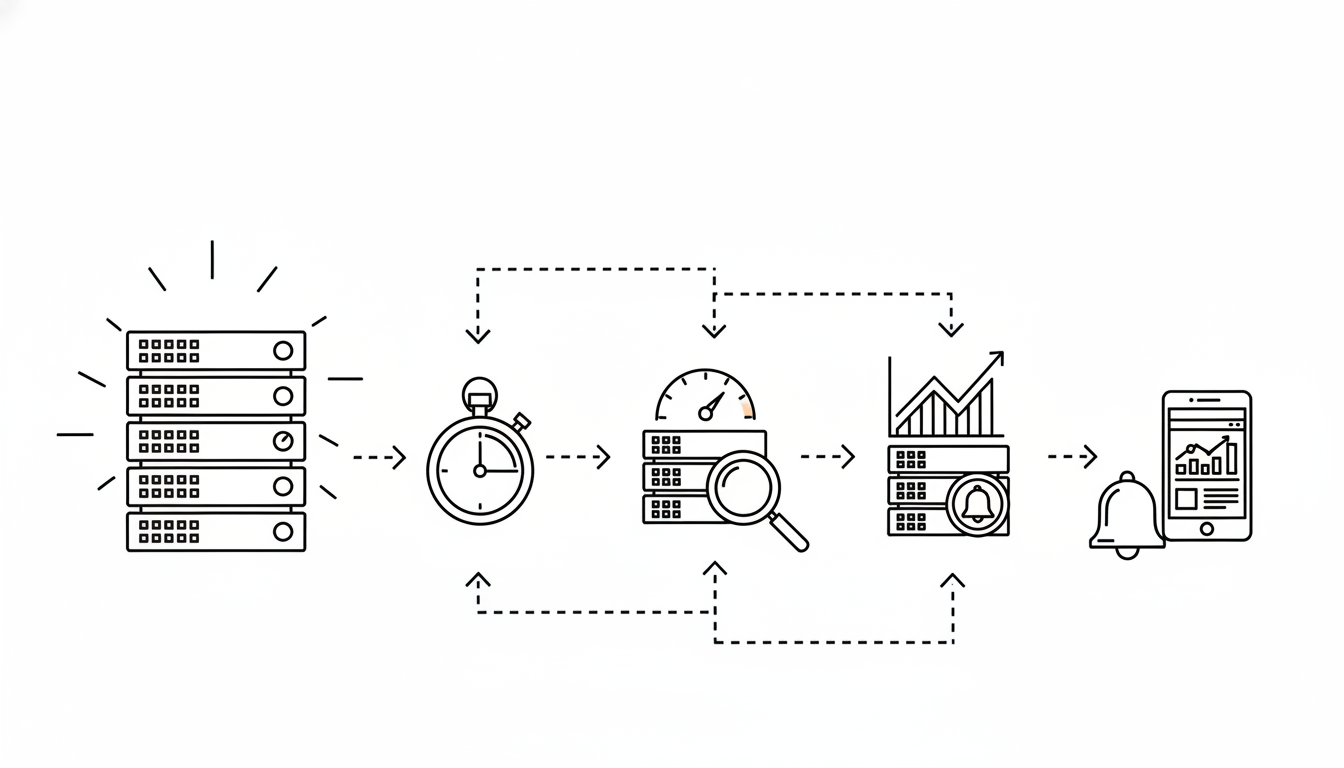
Your website’s success depends on one critical factor that often goes unnoticed — uptime and performance. Even the most beautifully designed site or the best marketing campaign can fail if your website is slow or frequently unavailable.
Monitoring your hosting uptime and performance ensures your visitors always experience fast, reliable access to your content. It also helps you detect issues before they impact customers or search engine rankings.
This in-depth guide explains how to monitor your hosting uptime and performance, what metrics to track, and how to ensure your website runs efficiently every single day.
1. Why Monitoring Hosting Performance Matters
Your hosting provider promises reliability, but it’s your responsibility to verify it. Uptime and performance monitoring tell you if your host truly delivers what it advertises.
Key Reasons to Monitor
- Ensure constant accessibility: Visitors and customers expect your site to work 24/7.
- Prevent revenue loss: Every minute of downtime can cost money, especially for eCommerce sites.
- Improve user experience: A faster, smoother site keeps visitors engaged.
- Protect SEO rankings: Search engines prioritize fast, reliable websites.
- Catch problems early: Identify server issues, resource limits, or traffic spikes before they escalate.
Simply put, consistent monitoring gives you control and peace of mind.
2. Understanding Uptime and Performance Metrics
To monitor effectively, you need to know what each metric means. Hosting performance isn’t just about “is my site online?” — it’s about how well it runs.
a. Uptime
Uptime is the percentage of time your website is available and functioning.
A 99.9% uptime guarantee means your site may be down for only about 8 hours per year.
b. Downtime
The opposite of uptime — any period when your site is unreachable due to server issues, maintenance, or errors. Even short outages can hurt SEO and customer trust.
c. Server Response Time (TTFB)
Time to First Byte (TTFB) measures how long it takes for your server to respond to the first request. The lower, the better. Ideal TTFB: under 200 ms.
d. Page Load Speed
Measures how long your site takes to fully load. A good target is under 3 seconds. Anything slower risks losing visitors.
e. Latency
The delay caused by distance between your server and the user. Choosing a data center closer to your audience helps reduce latency.
f. Resource Usage
CPU, RAM, disk I/O, and bandwidth usage indicate how efficiently your website uses server resources. Excess usage can slow performance or trigger temporary throttling on shared plans.
3. Tools and Methods to Monitor Uptime
You can’t manually refresh your website every minute — uptime monitoring tools automate this process.
a. Built-In Hosting Tools
Many hosting dashboards include real-time monitoring for:
- CPU and memory usage
- Disk space and bandwidth
- Current uptime percentage
- Recent downtime events
Log into your hosting panel regularly to check these stats.
b. Third-Party Uptime Monitors
External monitors check your website every few minutes from multiple global locations.
They alert you instantly via email or SMS if your site goes down.
Set check intervals to 1-5 minutes for accurate reporting. Use multiple test regions if your audience is international.
c. Manual Spot Checks
Occasionally, visit your website from different devices and networks.
This helps detect location-specific slowdowns or DNS issues that automated tools might miss.
4. Track Website Speed and Load Times
Speed is equally vital to uptime. Even if your site is “up,” slow performance feels like downtime to visitors.
a. What Affects Speed
- Server hardware and location
- Website code efficiency
- Caching configuration
- Image sizes and scripts
- Network congestion
b. How to Measure
Use your hosting performance panel or speed testing utilities that measure:
- Load time by region
- TTFB
- Render time for images, CSS, and JavaScript
- Mobile vs. desktop performance
Compare results at different times of day to spot peak-hour slowdowns.
5. Analyze Server Logs for Clues
Server logs are one of the most valuable but underused sources of performance data.
a. Key Logs to Review
- Access logs: Track visitor activity, hits, and response codes.
- Error logs: Record server or script issues.
- Resource logs: Show CPU and memory usage.
b. What to Look For
- Repeated “500” or “503” errors — signs of overload.
- Long response times or timeout entries.
- Traffic surges causing slowdowns.
Regularly reviewing logs helps you pinpoint patterns before problems escalate.
6. Measure Time to First Byte (TTFB)
TTFB directly reflects how fast your server responds. It depends on your hosting infrastructure, caching, and database performance.
Improvement Tips
- Enable server-side caching (LiteSpeed or Nginx).
- Use a Content Delivery Network (CDN).
- Upgrade to a newer PHP version.
- Optimize database queries.
- Choose a data center close to your main audience.
Monitoring and improving TTFB boosts user experience and SEO rankings simultaneously.
7. Monitor Resource Usage in Real Time
High resource usage slows your site or triggers temporary limits, especially on shared plans.
a. CPU and Memory
- Spikes may indicate traffic surges or poorly optimized plugins.
- Consistent high usage means you may need to upgrade your plan.
b. Disk Space
- Delete old backups or logs.
- Optimize databases to reclaim space.
c. Bandwidth
Monitor monthly bandwidth consumption. If you’re nearing limits, consider compression or CDN integration.
Your hosting panel usually provides graphs and alerts for each metric — check them weekly.
8. Check Global Performance Consistency
If your audience is spread worldwide, your website should load consistently fast everywhere.
How to Test
- Perform speed tests from multiple global locations.
- Compare response times for North America, Europe, and Asia.
- If delays are significant, activate a CDN or multi-region hosting.
This ensures international users receive the same smooth experience as local visitors.
9. Monitor DNS Performance
Slow or misconfigured DNS records can delay site loading and even cause intermittent downtime.
Tips to Keep DNS Fast
- Use reliable, low-latency DNS hosting (many web hosts offer premium DNS).
- Reduce unnecessary DNS lookups.
- Keep Time to Live (TTL) values balanced — not too short, not too long.
- Monitor DNS changes regularly to prevent errors.
A healthy DNS setup accelerates initial connection time.
10. Automate Alerts and Reports
Constant manual checks aren’t practical. Set up automatic alerts and reports for proactive monitoring.
Suggested Alerts
- Uptime drops below 99.9%
- Server response time exceeds threshold (e.g., 1 second)
- CPU or memory exceeds 80% usage
- Disk nearing capacity
Receive alerts via email, dashboard, or mobile notification so you can react instantly.
11. Track Website Performance Over Time
One-time tests provide snapshots, but trends reveal the bigger picture.
What to Monitor Monthly
- Average uptime percentage
- Mean load time
- Traffic patterns and peak hours
- Bandwidth and CPU usage
- Changes after updates or migrations
Consistent trend analysis helps evaluate your host’s reliability and scalability over the long run.
12. Use Caching to Improve Measured Speed
Caching reduces the amount of work your server performs for every page request.
Server-Level Caching
Ask your host if they support:
- LiteSpeed Cache
- Varnish Cache
- Nginx FastCGI caching
Browser-Level Caching
Configure headers to store static assets (CSS, JS, images) locally for repeat visitors.
With caching enabled, performance metrics instantly improve and load times drop.
13. Enable GZIP or Brotli Compression
Compression reduces file size before transferring data from your server to visitors’ browsers.
Benefits
- Decreases page load time
- Saves bandwidth
- Improves mobile experience
You can activate compression from your control panel under “Optimize Website” or similar settings.
14. Monitor Database Performance
If your website uses a database, it can become a bottleneck when unoptimized.
Database Monitoring Tips
- Track slow query logs.
- Repair and optimize tables weekly.
- Use caching for frequent queries.
- Keep database size under control by cleaning old revisions or spam entries.
Efficient databases shorten response times dramatically.
15. Test Your Website After Updates
Every plugin, theme, or CMS update can impact performance.
Testing Routine
- Test site speed before and after updates.
- Compare TTFB and page load time.
- Roll back or replace any update that slows your site.
Monitoring immediately after updates ensures performance consistency over time.
16. Review Hosting Server Location and Routing
Server distance affects latency. Data traveling halfway across the world adds milliseconds to each request.
Improvement Steps
- Choose a hosting plan with a data center near your target region.
- If you serve multiple continents, use a CDN for distributed caching.
- Check routing paths to detect inefficient network routes.
Reducing latency improves both speed and reliability.
17. Evaluate Host’s SLA (Service Level Agreement)
Your hosting company should provide an uptime guarantee — but do they actually meet it?
How to Check
- Compare your monitoring reports to the host’s SLA claims.
- If uptime consistently falls short, contact support.
- Request compensation or consider switching providers if downtime persists.
An SLA is only valuable if the host truly upholds it.
18. Monitor Website Security Performance
Performance isn’t just about speed — security impacts uptime too.
Watch For
- Sudden slowdowns (possible DDoS or brute-force attempts).
- Increased CPU usage from malware or bots.
- Suspicious spikes in outbound traffic.
Enabling firewalls, malware scanning, and DDoS protection keeps uptime stable and consistent.
19. Test Performance Under Load
Even if your website performs well under normal conditions, heavy traffic can reveal weaknesses.
Load Testing Benefits
- Simulates multiple users visiting at once.
- Helps you measure how your host handles pressure.
- Identifies when you’ll need to upgrade plans or add caching.
Conduct periodic load tests, especially before major marketing campaigns or seasonal sales.
20. Monitor SSL and Certificate Health
An expired or misconfigured SSL certificate can break your website and cause downtime.
Checklist
- Check SSL validity and renewal dates monthly.
- Enable auto-renewal in your hosting dashboard.
- Verify that all pages load via HTTPS with no mixed-content warnings.
Maintaining SSL health ensures both uptime and user trust remain intact.
21. Compare Performance Before and After Hosting Changes
If you’ve recently upgraded your plan, switched hosts, or changed settings, compare historical data to new metrics.
Compare These Factors
- Uptime percentage before and after migration
- Average page load speed
- TTFB and database response
- Visitor bounce rate
Quantifying improvement confirms that your hosting investment is paying off.
22. Build a Performance Maintenance Routine
Regular checkups keep your site healthy and fast year-round.
Weekly
- Review uptime reports.
- Check resource usage and clear caches.
- Ensure backups completed successfully.
Monthly
- Optimize databases and images.
- Review performance logs.
- Update plugins and CMS.
Quarterly
- Run load and global speed tests.
- Evaluate hosting plan suitability.
- Verify SSL and DNS health.
Routine maintenance ensures consistency and prevents unexpected slowdowns.
23. When to Consider Upgrading Hosting
If your performance metrics consistently fall short despite optimization, the issue may be your hosting tier.
Signs It’s Time to Upgrade
- Frequent downtime or “resource limit reached” errors.
- TTFB consistently above 600 ms.
- Slow loading despite caching.
- Growing traffic that overwhelms shared resources.
Upgrading to VPS, cloud, or managed hosting can significantly boost performance stability.
24. Key Metrics Summary
| Metric | Ideal Range | What It Means |
|---|---|---|
| Uptime | 99.9%+ | Site availability and reliability |
| TTFB | < 200 ms | Server responsiveness |
| Load Time | < 3 seconds | Overall site performance |
| CPU Usage | < 70% | Server health and resource margin |
| Memory Usage | < 75% | Efficiency and scalability |
| Error Rate | < 1% | Application or server issues |
Regularly benchmarking these metrics ensures your hosting remains optimal.
25. Final Thoughts
Monitoring your hosting uptime and performance isn’t just a technical task — it’s a business strategy. A fast, reliable website builds trust, improves search rankings, and keeps customers coming back.
By tracking uptime, load times, and server resources, you gain complete visibility into how your host performs. With the right tools and habits, you can act before problems occur — instead of after.
Remember, hosting performance isn’t something you “set and forget.” Continuous observation, testing, and fine-tuning guarantee that your website remains secure, responsive, and competitive.
In short: measure regularly, analyze trends, and stay proactive. The more you monitor, the more control you gain — ensuring your website stays fast, stable, and always online.
