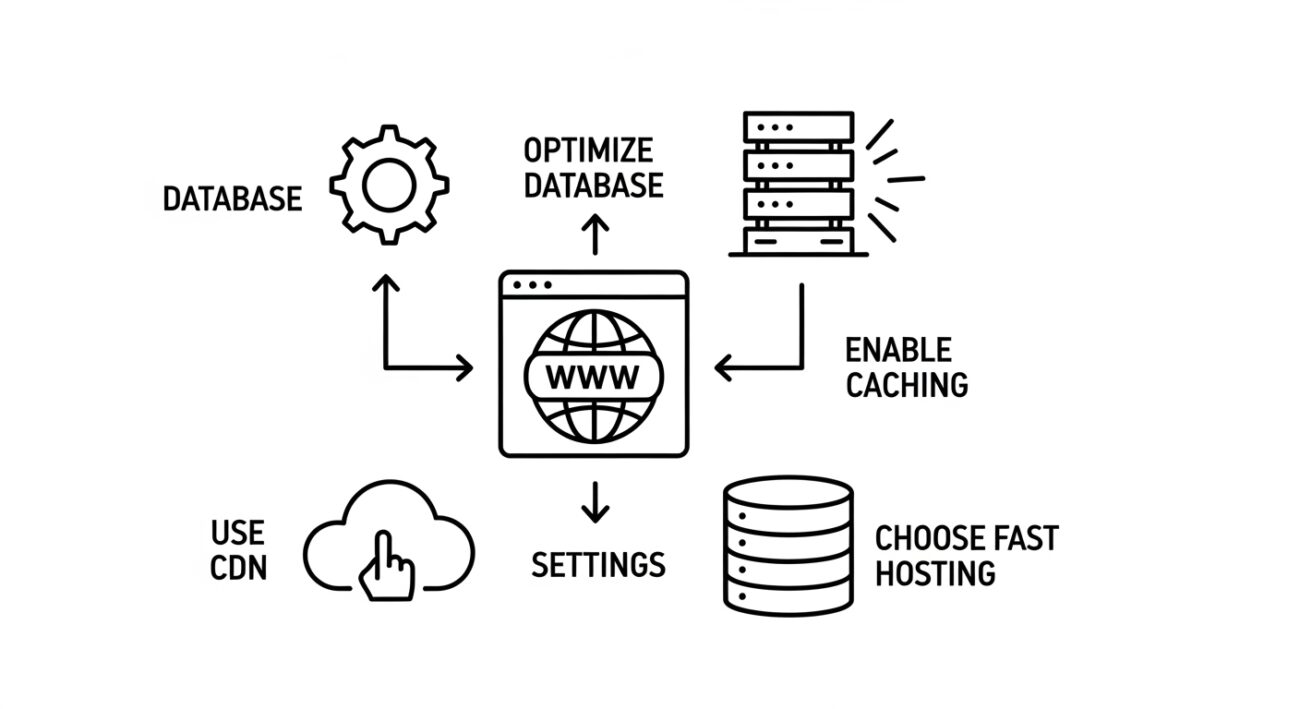
Website speed is no longer a luxury — it’s a requirement. In today’s fast-moving digital landscape, users expect websites to load instantly. If your site takes longer than three seconds, most visitors will leave before it even finishes loading.
What many website owners don’t realize is that a major part of your site’s performance depends on your hosting settings — not just your code or design. Properly configuring your hosting environment can dramatically improve loading times, reduce bounce rates, and enhance search engine rankings.
This complete guide will teach you how to optimize your hosting settings to make your website run faster, smoother, and more efficiently — no complicated coding required.
1. Why Website Speed Matters
Before diving into settings and optimizations, it’s important to understand why speed plays such a crucial role in your website’s success.
a. User Experience
Fast websites keep users engaged. Slow websites drive visitors away. Even a one-second delay in page load time can lead to lower conversions, higher bounce rates, and a negative first impression.
b. SEO Ranking
Search engines consider loading speed a ranking factor. Faster sites rank higher in search results, especially on mobile devices. A slow site can drag your SEO performance down even if your content is great.
c. Conversion and Revenue
Speed directly impacts sales. In eCommerce, faster websites consistently generate higher revenue because customers can browse and purchase without delay.
d. Mobile Experience
With mobile traffic dominating global web usage, a lightweight, fast-loading site is essential. Optimizing hosting ensures your website performs well across devices and networks.
2. Evaluate Your Current Website Speed
Before making changes, you need to know how your website currently performs.
Step 1: Measure Loading Time
Use trusted tools or built-in analytics from your hosting provider to check your load time. Take note of:
- Time to First Byte (TTFB)
- Fully Loaded Time
- Page Size
- Requests per page
Step 2: Identify Server Bottlenecks
Check if delays come from:
- Slow server response
- Outdated PHP version
- Lack of caching or CDN
- Overloaded shared server
Knowing what slows your site helps you target the right hosting settings for improvement.
3. Choose the Right Hosting Plan for Speed
Your hosting type determines your baseline performance. Even the best optimizations won’t help if your hosting plan is too limited.
a. Shared Hosting
Great for beginners but limited in resources. If your site is growing or receiving consistent traffic, shared hosting may not deliver the speed you need.
b. VPS Hosting
VPS (Virtual Private Server) gives you dedicated resources and full control over configurations. It’s ideal for improving speed while keeping costs reasonable.
c. Cloud Hosting
Cloud hosting distributes your website across multiple servers, improving uptime and load balancing. It’s one of the fastest and most scalable options available.
d. Dedicated Server
For large or resource-heavy sites, dedicated hosting offers maximum power and flexibility. You can fine-tune every performance aspect at the hardware and software level.
Choosing the right hosting type lays the foundation for all other optimizations.
4. Enable Caching on Your Server
Caching is one of the most effective ways to speed up your website using hosting settings.
What Caching Does
When a user visits your site, caching stores frequently accessed data (like HTML pages and images) so it can be loaded quickly on repeat visits without regenerating it from scratch.
Types of Caching to Enable
- Browser caching: Saves static resources like CSS, JavaScript, and images on visitors’ browsers.
- Server-side caching: Uses your host’s resources to deliver pre-generated pages faster.
- Opcode caching: Stores compiled PHP scripts in memory to avoid reprocessing.
- Object caching: Helps dynamic sites like WordPress store database queries for reuse.
Most hosting panels let you enable caching with a simple toggle or through the server’s control panel. For advanced performance, consider hosts that offer LiteSpeed or Nginx caching systems, which handle requests faster than traditional Apache servers.
5. Upgrade to the Latest PHP Version
If your website runs on PHP (like WordPress or Magento), using the latest version can improve performance dramatically.
Why It Matters
Each new PHP release brings:
- Faster execution time
- Better memory management
- Improved security
- Lower CPU usage
How to Check and Update
- Log in to your hosting control panel (such as cPanel or Plesk).
- Look for PHP Selector or Software → MultiPHP Manager.
- Choose the newest stable version supported by your CMS.
- Test your site after updating to ensure compatibility.
Upgrading PHP can often double your site’s processing speed — one of the easiest wins for performance.
6. Use a LiteSpeed or Nginx Web Server
The type of web server software your host uses has a major effect on website speed.
Apache vs. LiteSpeed vs. Nginx
- Apache: Reliable but slower under high traffic.
- LiteSpeed: Known for its superior caching and handling of concurrent connections.
- Nginx: Excellent for static content and efficient resource use.
If your hosting provider lets you choose, opt for LiteSpeed or Nginx. They use event-driven architecture to handle thousands of requests simultaneously without slowing down.
7. Enable GZIP or Brotli Compression
Compression reduces the size of your web files before sending them to visitors’ browsers. Smaller files mean faster delivery and less bandwidth consumption.
How to Enable Compression
- In cPanel: go to Optimize Website → Enable GZIP Compression.
- In LiteSpeed or Nginx: adjust server configuration to enable Brotli, a modern and more efficient compression method.
Compressed websites load up to 70% faster, especially for first-time visitors.
8. Optimize Database Performance
If your site depends on a database (like WordPress, Joomla, or Drupal), optimizing it through hosting settings can greatly improve response time.
Steps to Optimize
- Use your hosting control panel’s phpMyAdmin to repair and optimize tables.
- Remove unnecessary post revisions, spam comments, and transients.
- Schedule automatic database optimization once a week.
- For high-traffic sites, enable query caching or use a separate database server.
Some hosts offer built-in tools that automatically clean and optimize databases to maintain speed without manual intervention.
9. Utilize a Content Delivery Network (CDN)
A CDN distributes your website’s content across multiple servers worldwide. When someone visits your site, data is delivered from the nearest location, reducing latency and loading time.
How to Set Up a CDN
- Most modern hosting panels include free CDN integration options.
- Enable it through your host’s dashboard or DNS settings.
- Clear cache and verify delivery through your new network.
A CDN is especially useful for global audiences and image-heavy websites.
10. Optimize DNS and Reduce Lookup Time
DNS (Domain Name System) translates your domain name into an IP address. If DNS resolution is slow, your entire site feels sluggish.
Tips to Improve DNS Speed
- Use your hosting provider’s premium DNS or a faster managed DNS service.
- Reduce the number of external resources that require extra lookups.
- Keep DNS TTL (Time to Live) reasonable for quick updates.
Fast DNS resolution ensures that your visitors connect to your server almost instantly.
11. Minimize HTTP Requests
Every file on your webpage — from scripts to images — adds a separate HTTP request. Too many requests slow down loading times.
Server-Side Adjustments
- Combine and minify CSS and JavaScript files using built-in optimization tools in your hosting panel.
- Serve static assets through caching or CDN.
- Enable HTTP/2 or HTTP/3 support (if available) to process multiple requests in parallel.
Most modern hosts already support HTTP/2 or HTTP/3, which improves loading speed for complex websites.
12. Use NVMe or SSD Storage
Traditional HDD hosting is outdated. Modern hosting providers now offer SSD or NVMe drives, which can read and write data many times faster.
Why Storage Type Matters
- NVMe is up to 10x faster than standard SSDs.
- Faster data retrieval means quicker loading times for large sites or databases.
- Less mechanical delay ensures consistent performance during peak traffic.
If your host offers NVMe-powered plans, upgrading is one of the most effective long-term improvements you can make.
13. Reduce Server Response Time (TTFB)
Time to First Byte (TTFB) measures how long your server takes to respond to a user’s request. A low TTFB means your hosting server is fast and well-optimized.
How to Lower TTFB
- Choose a server geographically close to your target audience.
- Enable caching and compression.
- Upgrade to a newer PHP version.
- Use LiteSpeed or Nginx web servers.
- Minimize external requests from third-party plugins.
If your TTFB remains high even after optimization, it might be time to switch to a higher-tier plan or a faster host.
14. Activate HTTP/2 or HTTP/3
These newer protocols improve how data is transmitted between your server and users.
Benefits
- Multiplexing: multiple files loaded in one connection
- Header compression: reduces overhead
- Prioritization: important resources load first
Check your hosting panel or SSL/TLS settings — most modern servers allow one-click activation for HTTP/2 or HTTP/3 once SSL is enabled.
15. Optimize Images and Media Delivery
Although this is partly a content issue, hosting can play a big role in optimizing how media files are delivered.
Server-Level Enhancements
- Enable lazy loading to defer offscreen images.
- Use image optimization tools in your host’s dashboard (if available).
- Store heavy media on CDN or object storage instead of local directories.
- Convert images to modern formats like WebP for smaller file sizes.
Efficient image handling reduces data load and improves perceived speed for visitors.
16. Manage Background Processes and Cron Jobs
Unnecessary background tasks can slow down your server and consume CPU resources.
Best Practices
- Review all scheduled cron jobs in your hosting panel.
- Disable or adjust intervals for low-priority tasks.
- Offload resource-intensive tasks to external services if possible.
Keeping server processes lean ensures more power is available for serving visitors quickly.
17. Enable Object Cache and Opcode Cache
These caching layers store precompiled code and data in memory to reduce processing time.
Object Cache
Stores frequently used database queries to prevent repetitive fetching.
Opcode Cache
Stores compiled PHP code in memory, reducing CPU usage.
Most premium hosting environments allow enabling OPcache, Redis, or Memcached directly from the control panel. When configured correctly, they can cut response times in half.
18. Optimize SSL and Security Layers
Security configurations can impact speed if not handled properly.
Steps for Faster SSL Delivery
- Use HTTP/2 (requires SSL).
- Choose ECC certificates over RSA for lighter encryption.
- Enable OCSP stapling in your hosting panel to reduce certificate lookup time.
- Keep your SSL certificate and configuration up to date.
This ensures your site remains secure without compromising performance.
19. Monitor Server Performance Regularly
Continuous monitoring helps you detect and fix issues before they slow down your site.
What to Monitor
- CPU and memory usage
- Disk I/O speed
- Bandwidth consumption
- Error logs and slow query logs
Most hosts include resource graphs and automated alerts so you can act before performance dips.
20. When to Consider Upgrading Your Hosting
If your website continues to load slowly after all optimizations, it may have outgrown your current hosting plan.
Signs You Need an Upgrade
- Frequent “resource limit reached” errors
- Long response times during traffic spikes
- Delays in database queries
- Inability to add more storage or RAM
Upgrading to VPS, cloud, or dedicated hosting ensures your website gets the resources it needs to stay fast and reliable.
21. Final Optimization Checklist
Before you wrap up, go through this checklist to ensure your hosting settings are fine-tuned for maximum performance:
✅ Enabled caching (browser, server, object, opcode)
✅ Running latest PHP version
✅ Compression (GZIP or Brotli) active
✅ Using LiteSpeed or Nginx web server
✅ CDN integrated for global delivery
✅ HTTP/2 or HTTP/3 enabled
✅ Database optimized and cleaned
✅ NVMe or SSD hosting selected
✅ SSL configured properly
✅ Monitoring and auto-backups enabled
When these items are in place, your website will operate at peak speed and stability.
22. Conclusion
Improving your website’s speed doesn’t always require redesigning the site or rewriting code. Often, the biggest gains come from optimizing your hosting settings — fine-tuning the server environment that powers your website.
By enabling caching, upgrading PHP, using compression, optimizing databases, and choosing modern web server technology, you can achieve incredible speed improvements in just a few hours.
Remember: website performance isn’t a one-time task — it’s an ongoing process. Regular monitoring, timely upgrades, and smart server configuration keep your site lightning-fast for years to come.
In summary: When your hosting works efficiently, your website feels effortless. Speed is not just about optimization — it’s about giving your visitors the best experience possible.
