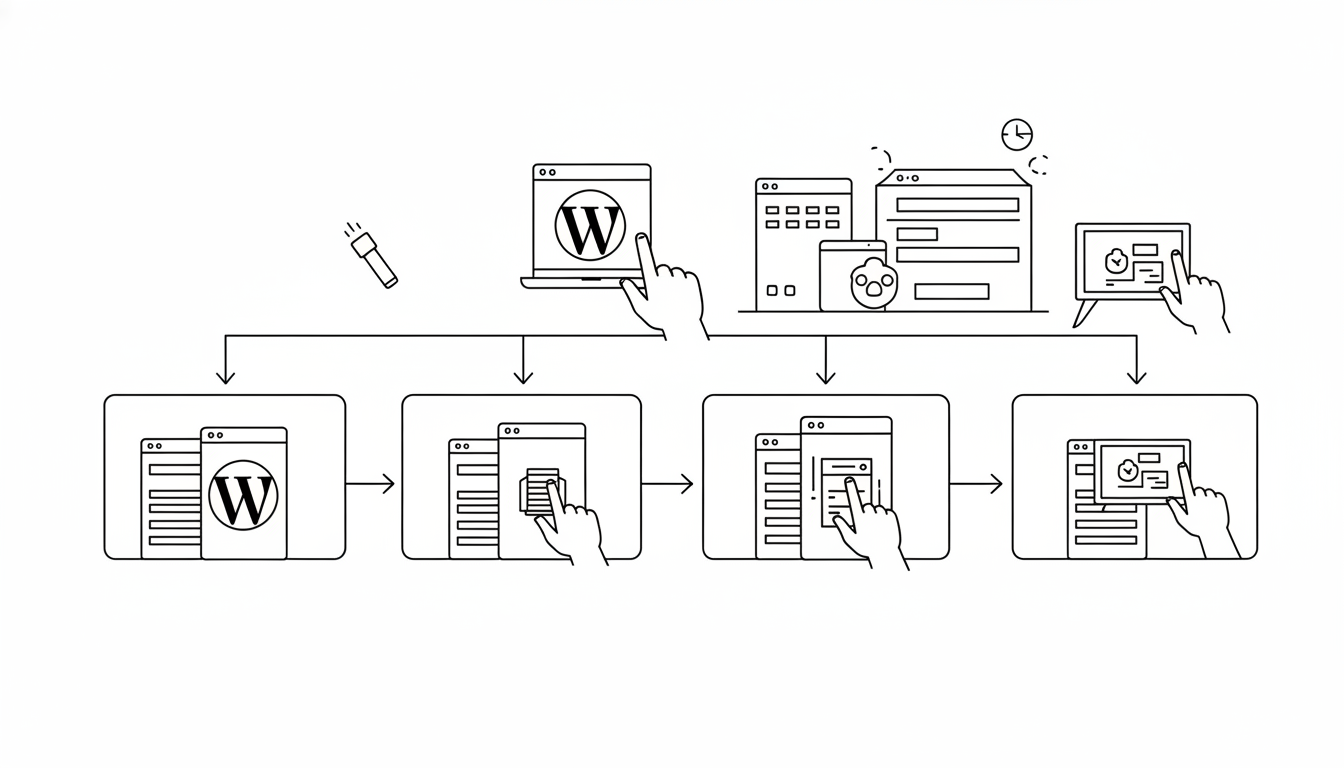
If you’re ready to launch your own website, blog, or online business, WordPress is one of the best platforms you can choose. It powers over 40% of all websites in the world because it’s flexible, user-friendly, and completely customizable — even if you don’t know how to code.
The good news? Installing WordPress on your hosting account is easier than ever. Modern web hosts provide one-click installation options and automated tools that can have your site online in minutes.
In this detailed guide, you’ll learn exactly how to set up WordPress on your web hosting account, from preparing your domain to configuring essential settings after installation.
1. What Is WordPress and Why Use It?
Before diving into installation, it helps to understand what makes WordPress so popular.
WordPress is an open-source content management system (CMS) that allows anyone to create and manage websites without needing to write complex code.
Key Advantages
- Ease of Use: Even beginners can publish pages and blog posts quickly.
- Flexibility: You can build any kind of site — blog, portfolio, store, or business website.
- Thousands of Themes: Instantly change your site’s appearance.
- Powerful Plugins: Add features like contact forms, SEO tools, and analytics.
- Community Support: A massive ecosystem of tutorials, forums, and updates keeps WordPress secure and modern.
Now let’s walk through how to get your WordPress website live.
2. Step One: Choose a Suitable Web Hosting Plan
Your hosting environment is the foundation of your website. A good host provides the speed, storage, and reliability WordPress needs to perform smoothly.
Recommended Hosting Types
- Shared Hosting: Ideal for beginners and small websites.
- WordPress Hosting: Pre-configured servers optimized for WordPress.
- VPS Hosting: Better performance and more control as your site grows.
- Managed Hosting: Automatic updates, backups, and security handled for you.
When choosing a host, ensure it supports:
- PHP 8.0 or higher
- MySQL 5.7+ or MariaDB 10.4+
- HTTPS and SSL certificates
- At least 1 GB RAM for smooth performance
Once your hosting plan is active, you can proceed with domain setup.
3. Step Two: Connect Your Domain Name
Your domain name is your website’s digital address — for example, yourwebsite.com. You’ll need to connect it to your hosting account before WordPress can go live.
How to Connect
- If you purchased the domain from your hosting provider: It’s automatically linked — skip to the next step.
- If your domain is from a different registrar:
- Log in to your domain registrar’s account.
- Find the DNS or Nameserver settings.
- Replace the existing nameservers with those provided by your host (e.g.,
ns1.yourhost.com,ns2.yourhost.com). - Save and wait for DNS propagation — usually within a few hours.
Once connected, your hosting server and domain will work together seamlessly.
4. Step Three: Access Your Hosting Control Panel
Most hosting providers include a control panel like cPanel, Plesk, or a custom dashboard. This is where you’ll manage domains, files, databases, and install WordPress.
Login to cPanel
- You’ll typically receive a link like
yourdomain.com/cpanelor a login via your hosting dashboard. - Enter your username and password provided in your welcome email.
Once inside, look for the section labeled “Website,” “Applications,” or “Softaculous App Installer.”
5. Step Four: Install WordPress Automatically (One-Click Method)
Most web hosts today offer a one-click WordPress installation tool, making setup effortless.
Using Softaculous or WordPress Installer
- Find the WordPress Installer icon in your control panel.
- Click “Install Now.”
- Choose your domain (e.g.,
https://yourdomain.com). - Fill in basic details:
- Site Name and Description
- Admin Username and Password
- Admin Email Address
- Choose your desired language and version of WordPress.
- Optionally select a starter theme.
- Click Install.
Within seconds, WordPress will install automatically, and you’ll see a success message with your admin login URL — usually yourdomain.com/wp-admin.
6. Step Five: Manual Installation (Optional)
If you prefer a manual setup — or your host doesn’t provide one-click installers — you can install WordPress manually.
Step-by-Step Manual Setup
- Download WordPress from the official source and extract the files.
- Upload files to your hosting account via the File Manager or FTP into the
public_htmlfolder. - Create a new database:
- In cPanel, open MySQL Databases.
- Create a database name and user, assign a strong password, and grant full privileges.
- Configure the
wp-config.phpfile:- Rename
wp-config-sample.phptowp-config.php. - Open it and enter your database details:
define('DB_NAME', 'your_database_name'); define('DB_USER', 'your_database_user'); define('DB_PASSWORD', 'your_secure_password'); define('DB_HOST', 'localhost'); - Save and upload the file.
- Rename
- Run the installation:
- Visit your domain in a browser.
- Follow the on-screen setup wizard to complete the installation.
Once done, WordPress will be ready for configuration.
7. Step Six: Log in to Your WordPress Dashboard
After installation, you’ll receive your WordPress login link — typically:
https://yourdomain.com/wp-admin
Enter the admin username and password you created. Once logged in, you’ll see the WordPress Dashboard — your control center for managing content, themes, and plugins.
8. Step Seven: Choose and Customize Your Theme
Your theme determines your website’s appearance. WordPress includes a few default themes, but you can choose from thousands available.
Installing a New Theme
- In your dashboard, go to Appearance → Themes → Add New.
- Search for free themes or upload a premium one.
- Click Install, then Activate.
Customization Tips
- Use Appearance → Customize to edit colors, fonts, and layouts.
- Ensure your theme is responsive (mobile-friendly).
- Delete unused themes to reduce potential vulnerabilities.
Your theme sets the tone — choose one that reflects your brand and supports modern performance standards.
9. Step Eight: Install Essential Plugins
Plugins extend your website’s functionality. However, it’s important to install only what you need to avoid slowing down your site.
Must-Have Plugins
- Security Plugin: Protects from malware and brute-force attacks.
- Backup Plugin: Automates backups to restore your site easily.
- Caching Plugin: Speeds up page loading times.
- SEO Plugin: Optimizes your site for search engines.
- Contact Form Plugin: Allows visitors to reach you easily.
How to Install
- Navigate to Plugins → Add New.
- Search for the plugin name.
- Click Install Now, then Activate.
Keep plugins updated to maintain security and compatibility.
10. Step Nine: Configure General Settings
Now that WordPress is installed, adjust a few key settings to make your site secure and search-engine-ready.
Recommended Adjustments
- Site Title and Tagline: Set under Settings → General.
- Timezone and Date Format: Match your local region.
- Permalinks: Go to Settings → Permalinks and choose the Post Name structure for SEO-friendly URLs.
- Discussion Settings: Moderate comments to prevent spam.
- Media Settings: Define image sizes to save space.
These small configurations enhance both usability and performance.
11. Step Ten: Secure Your WordPress Installation
WordPress is a robust platform, but it’s also a common target for hackers. Strengthen your security immediately after setup.
Quick Security Tips
- Enable HTTPS using your hosting’s free SSL certificate.
- Use strong admin passwords and avoid “admin” as the username.
- Limit login attempts to prevent brute-force attacks.
- Schedule automatic updates for plugins and themes.
- Regularly back up your entire site.
Many hosting providers include built-in malware scanning and firewalls — activate those tools from your control panel.
12. Step Eleven: Create and Publish Your First Page
With WordPress ready, it’s time to add your first content.
To Create a Page
- In the dashboard, go to Pages → Add New.
- Enter your page title and content using the Gutenberg block editor.
- Add images, videos, and headings as needed.
- Click Publish when ready.
You can repeat this process to build your homepage, about page, contact page, and any other sections.
13. Step Twelve: Set Up Navigation Menus
Menus help visitors navigate your website easily.
How to Create Menus
- Go to Appearance → Menus.
- Create a new menu and add pages or custom links.
- Assign the menu to a location (like header or footer).
A clear, simple navigation structure improves usability and SEO.
14. Step Thirteen: Optimize Performance
A fast website keeps visitors engaged and ranks better in search engines.
Ways to Improve Speed
- Enable caching through a plugin or your host’s settings.
- Optimize images using compression tools.
- Use a CDN (Content Delivery Network) for global content delivery.
- Minify CSS, HTML, and JavaScript files.
- Keep your theme and plugins lightweight.
Many hosting dashboards have built-in performance tools — make sure to activate them.
15. Step Fourteen: Set Up Backups
Regular backups ensure that you can recover your site in case of an error or hack.
Backup Options
- Use your hosting’s built-in backup scheduler.
- Install a WordPress backup plugin for more control.
- Save copies to external cloud storage or download manually.
Keep at least two recent backup copies at all times.
16. Step Fifteen: Configure Email and Contact Forms
If your hosting includes email accounts, you can integrate them with WordPress easily.
To Set Up Email
- Create an address in your hosting control panel (e.g.,
info@yourdomain.com). - Install an SMTP plugin to ensure reliable email delivery.
For visitor communication, add a contact form plugin to collect messages directly through your site.
17. Step Sixteen: Connect Analytics and SEO Tools
To measure performance and attract visitors, integrate analytics and SEO features early on.
SEO Setup Tips
- Set your homepage and meta descriptions clearly.
- Submit your sitemap through search engine webmaster tools.
- Use an SEO plugin to optimize titles, headings, and URLs.
Tracking your audience helps you improve content and marketing strategies.
18. Step Seventeen: Customize Widgets and Footer
Widgets allow you to add small features like recent posts, social icons, or contact info.
How to Manage Widgets
- Go to Appearance → Widgets.
- Drag and drop elements into sidebar or footer areas.
- Remove anything unnecessary to keep design clean.
Keep your footer concise — include links to privacy policy, terms, or contact information.
19. Step Eighteen: Test and Review Everything
Before promoting your site, test it on multiple devices and browsers.
Checklist
✅ Homepage loads correctly
✅ Navigation links work
✅ Contact forms send emails successfully
✅ Images and videos display properly
✅ SSL padlock is visible
✅ Website adjusts to mobile screens
Fix any issues before going public — first impressions matter.
20. Step Nineteen: Launch Your Website
Once everything looks perfect, it’s time to go live.
Final Pre-Launch Steps
- Remove placeholder content.
- Clear caches for fresh loading.
- Recheck SEO settings.
- Announce your website on social media or via email.
Your WordPress site is now officially online and ready to receive visitors.
21. Step Twenty: Maintain Your WordPress Site
A WordPress site is easy to manage, but it requires regular maintenance to stay secure and fast.
Weekly and Monthly Tasks
- Update plugins, themes, and WordPress core.
- Monitor traffic and performance.
- Review security logs.
- Back up your site regularly.
- Optimize your database monthly.
Consistent maintenance keeps your site healthy and ensures long-term success.
22. Troubleshooting Common Issues
Even with an easy setup, small issues may occur. Here’s how to solve them quickly.
| Problem | Likely Cause | Quick Fix |
|---|---|---|
| Website not loading | DNS not propagated | Wait a few hours, clear cache |
| Login page blank | Plugin conflict | Disable recent plugins via FTP |
| SSL errors | Mixed content | Force HTTPS in settings |
| Upload limit too low | Server restriction | Change limit in php.ini or ask host |
| White screen | Theme or plugin issue | Switch to default theme temporarily |
Most hosting support teams can also assist if problems persist.
23. Final Checklist for a Successful WordPress Setup
✅ Domain connected and SSL active
✅ WordPress installed and updated
✅ Theme installed and customized
✅ Essential plugins configured
✅ Backups enabled
✅ Security measures in place
✅ SEO and analytics connected
✅ Website tested on all devices
Completing this checklist ensures your WordPress website is secure, fast, and professional right from launch day.
24. Final Thoughts
Setting up WordPress on your hosting account might seem technical at first, but with the right approach, it’s straightforward and rewarding.
By following each step carefully — from domain setup to performance tuning — you build a strong foundation for your online presence.
WordPress gives you freedom, flexibility, and control over your website’s future. Combined with reliable hosting and regular maintenance, it can power anything you imagine — from a simple blog to a thriving online business.
In summary: Your WordPress setup is more than an installation — it’s the start of your digital journey. Get the basics right today, and you’ll enjoy a fast, secure, and scalable website for years to come.
